

You build your app in Qt Creator, it runs perfectly, and you send it to a colleague. On their PC it refuses to start. Often the only clue is a dialog saying that no Qt platform plugin could be initialized. Nothing is wrong with your code, though. Your machine simply has Qt installed, and theirs does not.
To deploy a Qt application, you ship the Qt libraries, plugins, QML modules and compiler runtime that your executable needs, right next to it. This guide gives you one CMake-based recipe for Windows, macOS and Linux that works with Qt 6.5 and later. It also covers the platform tools behind it: windeployqt, macdeployqt and linuxdeploy.
The scope is desktop only. For phones, see Qt mobile app development and how to publish a Qt iOS app to the App Store. Follow along with any project from the free Qt 6.9 book examples (ZIP): pick one example and deploy it as you read.
Why your Qt app runs on your machine but not on anyone else’s
On your development machine, Qt is everywhere. On Windows, Qt Creator adds the kit’s bin folder to the PATH when it launches your app. On Linux and macOS, the linker records an rpath, a list of library folders stored inside the binary, that points straight into your Qt installation. As a result, every library and plugin your app asks for is found instantly.
A clean machine, however, has none of this. There is no Qt folder, no Qt on the PATH, and the rpath points to a directory that does not exist. Consequently, the executable starts, asks the operating system for Qt6Core, and the loader gives up. Even when the libraries are found, Qt still has to locate its plugins at runtime. That is a second, separate search, and it fails just as easily.
This, therefore, is what deployment means in practice. Deployment is the job of collecting everything your executable loads at runtime, its runtime dependencies, and placing them where the app will look on another computer. You can do it by hand, but a script is far more reliable. When you deploy a Qt application with a script, every build produces the same result, and you can test it before a user sees it.
One habit follows from this. Never judge a deployment on the machine that built it. Instead, test on a clean virtual machine, a fresh user account or a container without Qt. The rest of this guide assumes you have one available.
What has to ship next to your executable
The exact list depends on the Qt modules you link and the features you use at runtime. In a typical Qt 6 desktop app, these parts must travel with the executable:
- Qt libraries for each module you link, such as
Qt6Core,Qt6GuiandQt6Widgets. If you are unsure, check which Qt modules your app actually uses. - The platform plugin, which connects Qt to the windowing system. Every GUI app needs it:
qwindows.dllon Windows,libqcocoa.dylibon macOS, andlibqxcb.soor the Wayland plugins on Linux. It lives in aplatforms/subfolder. - Other plugins that your code loads at runtime, such as image formats, SQL drivers, TLS backends and styles.
- QML modules, for Qt Quick apps only.
- Qt translations, if you want Qt’s own dialogs in the user’s language.
- The compiler runtime, for MSVC or MinGW builds on Windows.
- An optional
qt.conf, a small text file next to the executable that tells Qt where its plugins and libraries live.
Plugins are the part people forget most often, because nothing links to them directly. Instead, Qt loads them by folder name at startup. That is why a missing platforms folder produces such a confusing error.
Shared or static Qt? (and a short licensing note)
The default route, and the one this guide follows, is shared libraries. Qt stays in separate DLL, dylib or .so files next to your app. A static build links Qt into your executable, so you ship fewer files. However, you must build Qt from source yourself, and plugins must be linked in statically as well. Qt’s Windows deployment documentation notes that the shared plugin approach does not work with a static build.
The Qt 6 way: one CMake script to deploy a Qt application on every desktop
Since Qt 6.3, the qt_generate_deploy_app_script() command generates an install-time script for you. When you run cmake --install, that script copies your app’s dependencies into the install folder. Windows and macOS were supported first, and Linux joined in Qt 6.5.
Under the hood, the script calls windeployqt on Windows and macdeployqt on macOS. On Linux, it uses CMake’s file(GET_RUNTIME_DEPENDENCIES) instead, as the qt_deploy_runtime_dependencies() reference explains. One limit applies everywhere: the build host and the target must match. For example, you cannot produce a Windows deployment from a Linux machine.
If CMake itself is still new to you, start with working with CMake in Qt 6. Still on qmake? Port first with the Qt 5 to Qt 6 migration checklist.

cmake --install, generated script, platform tool, self-contained folder, package.A minimal, deployable CMakeLists.txt (Qt Widgets)
Here is the smallest project that deploys correctly on all three desktops. It builds a single window with a label, which is enough to prove that libraries and the platform plugin arrive. Overall, two files are all you need.
cmake_minimum_required(VERSION 3.22)
project(HelloDeploy VERSION 1.0.0 LANGUAGES CXX)

find_package(Qt6 6.5 REQUIRED COMPONENTS Widgets)
qt_standard_project_setup()          # also pulls in GNUInstallDirs

qt_add_executable(HelloDeploy main.cpp)
target_link_libraries(HelloDeploy PRIVATE Qt6::Widgets)
set_target_properties(HelloDeploy PROPERTIES
    WIN32_EXECUTABLE ON              # no console window on Windows
    MACOSX_BUNDLE ON                 # build a .app bundle on macOS
)

install(TARGETS HelloDeploy
    BUNDLE  DESTINATION .
    RUNTIME DESTINATION ${CMAKE_INSTALL_BINDIR}
)

qt_generate_deploy_app_script(
    TARGET HelloDeploy
    OUTPUT_SCRIPT deploy_script
    NO_UNSUPPORTED_PLATFORM_ERROR
)
install(SCRIPT ${deploy_script})
#include <QApplication>
#include <QLabel>
int main(int argc, char *argv[])
{
QApplication app(argc, argv);
QLabel label(QStringLiteral("Hello from a deployed Qt app"));
label.show();
return app.exec();
}A few lines in that file do the real work:
qt_standard_project_setup()includes GNUInstallDirs, soCMAKE_INSTALL_BINDIRis defined for you.install(TARGETS)on its own copies only the executable. The exception is a macOS bundle, which is copied whole.- The generated script runs at install time, after the executable is in place, and adds everything it depends on.
NO_UNSUPPORTED_PLATFORM_ERRORstops configuration from failing when you build for a platform the API does not cover.
Build, install, inspect: three commands
First, always deploy a Release build. Debug builds pull in debug Qt libraries, which are larger and should not reach users. The --config flag matters for multi-config generators such as Visual Studio and Xcode; single-config generators simply ignore it.
cmake -S . -B build -DCMAKE_BUILD_TYPE=Release
cmake --build build --config Release
cmake --install build --config Release --prefix "$PWD/dist"
On Windows, the PowerShell version differs only in the prefix path:
cmake -S . -B build
cmake --build build --config Release
cmake --install build --config Release --prefix "$PWD\dist"
Then open dist and look at what arrived. On Windows you should see the executable, the Qt6*.dll files and a platforms folder with qwindows.dll. On Linux, the script also writes bin/qt.conf and sets the RUNPATH, the library search path stored in the binary, so the app looks in its own folders first.

cmake --install on Windows.Qt Quick apps: qt_generate_deploy_qml_app_script
A Qt Quick app also needs the QML modules it imports. For that case, Qt provides qt_generate_deploy_qml_app_script(). Use it instead of the app variant, because calling both for the same target is an error.
cmake_minimum_required(VERSION 3.22)
project(HelloQuick VERSION 1.0.0 LANGUAGES CXX)

find_package(Qt6 6.5 REQUIRED COMPONENTS Quick)
qt_standard_project_setup(REQUIRES 6.5)

qt_add_executable(appHelloQuick main.cpp)     # target name != URI (see note)
qt_add_qml_module(appHelloQuick
    URI HelloQuick
    VERSION 1.0
    QML_FILES Main.qml
)
target_link_libraries(appHelloQuick PRIVATE Qt6::Quick)
set_target_properties(appHelloQuick PROPERTIES
    WIN32_EXECUTABLE ON
    MACOSX_BUNDLE ON
)

install(TARGETS appHelloQuick
    BUNDLE  DESTINATION .
    RUNTIME DESTINATION ${CMAKE_INSTALL_BINDIR}
)

qt_generate_deploy_qml_app_script(
    TARGET appHelloQuick
    OUTPUT_SCRIPT deploy_script
    NO_UNSUPPORTED_PLATFORM_ERROR
    DEPLOY_USER_QML_MODULES_ON_UNSUPPORTED_PLATFORM
)
install(SCRIPT ${deploy_script})
#include <QGuiApplication>
#include <QQmlApplicationEngine>
int main(int argc, char *argv[])
{
QGuiApplication app(argc, argv);
QQmlApplicationEngine engine;
QObject::connect(&engine, &QQmlApplicationEngine::objectCreationFailed,
&app, [] { QCoreApplication::exit(-1); },
Qt::QueuedConnection);
engine.loadFromModule("HelloQuick", "Main");
return app.exec();
}import QtQuick
Window {
width: 320
height: 120
visible: true
title: qsTr("Hello Quick")
Text { anchors.centerIn: parent; text: qsTr("Deployed with CMake") }
}Gotcha: do not give the executable target the same name as the QML module URI. With
qt_add_executable(HelloQuick …)andURI HelloQuick, the module’s output folder collides with the executable. In our test the build failed, and the install step created a folder calledHelloQuickinstead of the binary. Qt Creator’s project template usesappXfor the target andXfor the URI for exactly this reason.
During installation, the script scans your QML and deploys the imports your app actually uses. With CMake older than 3.19, you also need MANUAL_FINALIZATION and an explicit qt_finalize_target() call. For background on qt_add_qml_module(), read QML and C++ integration. Expect a QML app to ship noticeably more files than a widgets app; the trade-offs are covered in Qt Widgets vs QML.
Options worth knowing (by Qt version)
Generally, the basic call is enough for many apps. Once you start trimming size or signing builds, these options matter. Each one has a minimum Qt version, so check yours before copying a snippet from a newer doc page.
| Option | What it does | Since |
|---|---|---|
NO_TRANSLATIONS |
Skips Qt’s own .qm files. They are deployed by default everywhere except macOS. For your app’s own translations, see Qt 6 internationalization. |
Qt 6.3 |
NO_COMPILER_RUNTIME |
Does not copy the compiler runtime on Windows. | Qt 6.3 |
DEPLOY_TOOL_OPTIONS |
Passes extra flags to windeployqt or macdeployqt. It has no effect on Linux. |
Qt 6.7 |
NO_PLUGINS, INCLUDE_PLUGINS, EXCLUDE_PLUGINS, INCLUDE_PLUGIN_TYPES, EXCLUDE_PLUGIN_TYPES |
Controls which Qt plugins ship. | Qt 6.10 |
PRE_/POST_INCLUDE_REGEXES, PRE_/POST_EXCLUDE_REGEXES, POST_INCLUDE/EXCLUDE_FILES |
Tunes runtime-dependency scanning on Linux. | Not on all platforms |
Policy QTP0007 |
When set to NEW, values containing spaces, such as a signing identity, reach the tool unchanged. | Qt 6.12 |
The following snippet combines several options. It signs on macOS, skips the loose runtime on Windows, and stays safe on older Qt versions.
# Qt 6.12+: forward values containing spaces unchanged (policy QTP0007)
if(QT_KNOWN_POLICY_QTP0007)
    qt_policy(SET QTP0007 NEW)
endif()

set(deploy_tool_options "")
if(APPLE)
    set(deploy_tool_options
        -hardened-runtime
        "-codesign=Developer ID Application: Your Name (TEAMID1234)")
elseif(WIN32)
    set(deploy_tool_options --no-compiler-runtime)
endif()

qt_generate_deploy_app_script(
    TARGET HelloDeploy
    OUTPUT_SCRIPT deploy_script
    NO_TRANSLATIONS
    NO_UNSUPPORTED_PLATFORM_ERROR
    DEPLOY_TOOL_OPTIONS ${deploy_tool_options}
)
install(SCRIPT ${deploy_script})
The if(QT_KNOWN_POLICY_QTP0007) guard simply skips the policy on versions that do not know it. However, on Qt 6.7 to 6.11 the old behaviour applies, and CMake may split a value with spaces into several arguments. On those versions, check the install log to confirm that the signing identity arrives intact. The QTP0007 reference describes both behaviours.
Note the single dash in -hardened-runtime: macdeployqt options use one dash, while windeployqt options use two. Finally, if you load plugins that you built yourself with QPluginLoader, deploy them through a custom qt_generate_deploy_script(). The Qt 6 plugin system post explains how those plugins are structured.
Deploying on Windows with windeployqt
The CMake script calls windeployqt for you. Still, knowing the tool helps when something goes wrong, and it is the quickest fix for a one-off build.
Run windeployqt by hand
windeployqt lives in the bin folder of your Qt kit, for example C:\Qt\6.12.0\msvc2022_64\bin. [VERIFY: confirm the kit folder name on your installation.] If you installed Qt with the Online Installer, set up the environment first: open the “Qt 6.x (MSVC …)” command prompt, or run qtenv2.bat from that bin folder.
The tool takes an .exe file or a folder that contains one, scans it, and copies the dependencies next to it. The simplest pattern is to copy your release executable into an empty folder first and point the tool at that copy.
# From a "Qt 6.x (MSVC ...)" prompt, or after running qtenv2.bat
New-Item -ItemType Directory -Force .\dist | Out-Null
Copy-Item .\build\Release\HelloDeploy.exe .\dist\
windeployqt --release .\dist\HelloDeploy.exe

# Qt Quick: point --qmldir at the folder that holds your .qml sources
windeployqt --release --qmldir .\qml .\dist\appHelloQuick.exe

# Preview the result without copying anything
windeployqt --dry-run .\dist\HelloDeploy.exe
With --qmldir, windeployqt runs qmlimportscanner over your QML files and copies every module they import. If you would rather leave the executable in the build folder, --dir sends the dependencies to another folder instead. In that case, remember to copy the .exe into that folder too. The official Qt for Windows deployment page lists every option.
The Visual C++ runtime: ship the Redistributable, not loose DLLs
By default, windeployqt also copies compiler runtime files. For MSVC release builds, Qt expects your installer to include Microsoft’s official Visual C++ Redistributable (vc_redist.x64.exe). The Qt documentation is explicit here: the individual runtime DLLs on your development machine are not intended or licensed for redistribution.
So the clean setup is simple. Let your installer run vc_redist, and pass --no-compiler-runtime, or NO_COMPILER_RUNTIME in CMake, so the loose files stay out. MinGW builds are different, because windeployqt copies the MinGW runtime DLLs that the app needs. [VERIFY: confirm the MinGW runtime files in your own test folder.]
windeployqt cheat sheet
The full option list is long, but most projects only touch a handful of flags. These are the ones worth remembering:
| Flag | Use it when |
|---|---|
--release / --debug |
The tool cannot tell the build type on its own. |
--qmldir <dir> |
You deploy a Qt Quick app. |
--dir <path> |
Dependencies should go to a different folder. |
--no-translations |
Your app does not need Qt’s own translations. |
--translations de,ru |
You want only specific languages. |
--no-compiler-runtime |
Your installer runs vc_redist. |
--skip-plugin-types <types> / --exclude-plugins <names> |
You want to trim plugins you do not use. |
--no-opengl-sw |
Your app never needs the software OpenGL fallback. |
--dry-run |
You want a preview before copying. |
--list target |
A script needs the list of deployed files. |
--verbose 2 |
Something is missing, so you need more detail. |
Additionally, --appx generates an AppxManifest.xml, which is a starting point for MSIX packaging.
Deploying on macOS with macdeployqt
On macOS, the unit of deployment is the app bundle, a folder ending in .app that Finder shows as a single application. macdeployqt fills that bundle with everything Qt needs.
Build a self-contained .app bundle and DMG
First, make sure your target is a bundle, which is what MACOSX_BUNDLE ON in the CMake file does. macdeployqt lives in the bin folder of your Qt kit. It copies the Qt frameworks into Contents/Frameworks and the plugins into Contents/PlugIns. It always includes the platform plugin, so the most common Windows error rarely appears on a Mac.
macdeployqt HelloDeploy.app -dmg
macdeployqt appHelloQuick.app -qmldir=/path/to/project/qml -dmg
For Qt Quick apps, -qmldir= plays the same role as on Windows. The -dmg flag then wraps the finished bundle in a disk image, ready to download. The Qt for macOS deployment page explains which plugins are included by default.
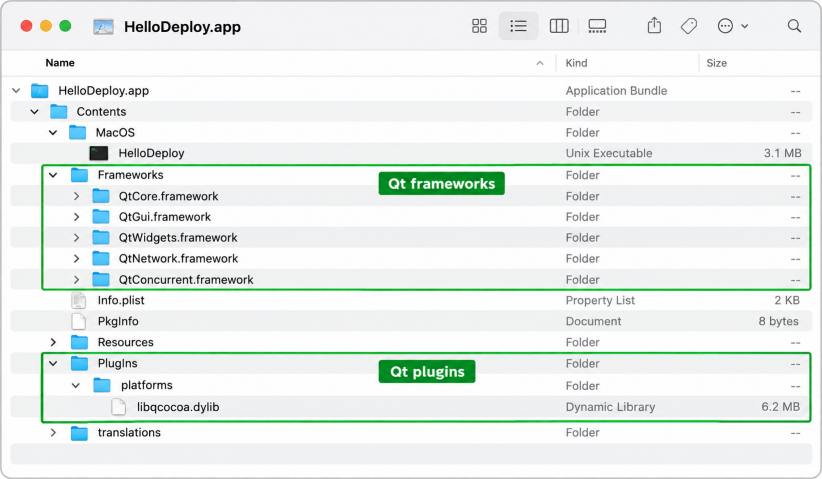
macdeployqt.Code signing and notarization flags
Modern macOS blocks unsigned apps downloaded from the internet. Notarization is Apple’s automated check of a signed app, and Gatekeeper expects it for software distributed outside the App Store. By default, macdeployqt only applies an ad-hoc signature.
For distribution, pass your Developer ID identity with -codesign="Developer ID Application: …", together with -hardened-runtime and -timestamp. Alternatively, -sign-for-notarization=<identity> switches on the options notarization needs in one step. If you target the Mac App Store, -appstore-compliant skips components that use private API. If your app needs entitlements, check how the current macdeployqt picks up an .entitlements file before relying on it. [VERIFY: entitlements handling in the current option table.]
Signing is only half the job, though. Submitting the signed app or DMG is a separate step, described in Apple’s guide to notarizing macOS software before distribution.
Deploying on Linux: CMake, AppImage or distro packages
Linux has no single answer, because users install software in different ways. You can ship a folder, a single-file AppImage, or a native DEB or RPM package. The first two are covered in detail below, while CPack handles the third.
The CMake deployment API on Linux (and the “system Qt” trap)
Qt itself ships no linuxdeployqt, and the Qt for Linux deployment page does not offer a dedicated tool. Since Qt 6.5, however, the same CMake script from earlier works on Linux. It writes a qt.conf, scans dependencies with file(GET_RUNTIME_DEPENDENCIES), and copies Qt libraries and plugins. Unlike its Windows and macOS counterparts, it also deploys non-Qt libraries that belong to your project.
For native packages, CPack can turn the same install step into DEB or RPM files. Also, the Qt Linux page includes a DEB walkthrough. Note that it uses the older FILENAME_VARIABLE keyword; in current code, use OUTPUT_SCRIPT instead.
Build an AppImage with linuxdeploy and linuxdeploy-plugin-qt
An AppImage is a single runnable file that works across many distributions. The usual route is to install your app into an AppDir, a folder laid out like a tiny root filesystem, and then let linuxdeploy bundle it. Its Qt support comes from linuxdeploy-plugin-qt. Both are community tools, not Qt Company products, and you download them from their GitHub releases pages.
cmake -S . -B build -DCMAKE_BUILD_TYPE=Release -DCMAKE_INSTALL_PREFIX=/usr
cmake --build build
DESTDIR="$PWD/AppDir" cmake --install build

export QML_SOURCES_PATHS="$PWD/qml"        # Qt Quick apps only
# export EXTRA_PLATFORM_PLUGINS="libqwayland-egl.so;libqwayland-generic.so"  # optional Wayland
./linuxdeploy-x86_64.AppImage --appdir AppDir \
    --desktop-file packaging/helloquick.desktop \
    --icon-file packaging/helloquick.png \
    --plugin qt --output appimage
You need a .desktop file and an icon, because the AppImage format requires both. For Qt Quick apps, QML_SOURCES_PATHS tells the plugin where your QML lives. EXTRA_PLATFORM_PLUGINS adds Wayland support next to the default xcb plugin. If the plugin picks up the wrong Qt, point the QMAKE variable at your kit’s qmake.
Above all, pick one bundling tool per artifact. If qt_generate_deploy_* also runs during this install, both tools try to bundle Qt. The simplest fix is to wrap install(SCRIPT …) in a CMake option and switch it off for AppImage builds. Also check the flags against linuxdeploy --help for your downloaded version.
Build on the oldest distro you support
Linux binaries link against the glibc of the machine that built them, and they rarely run on systems with an older glibc. Build on the oldest distribution you still support, ideally in a container or CI image, so your AppImage also runs on newer systems. The AppImage packaging guide explains this rule in more detail.
Fix “no Qt platform plugin could be initialized” and other deployment errors
However, reinstalling rarely helps. Instead, make Qt tell you where it looked. Set QT_DEBUG_PLUGINS=1 and start the app from a terminal; Qt then prints every folder it searched and every plugin it tried to load.
$env:QT_DEBUG_PLUGINS = "1"; .\HelloDeploy.exeQT_DEBUG_PLUGINS=1 ./HelloDeploy
Once you can see the search, the cause is usually one of these:
| Symptom | Likely cause | Fix |
|---|---|---|
| “no Qt platform plugin could be initialized” | platforms/qwindows.dll (or libqxcb.so / cocoa) is missing or in the wrong folder; another Qt version is on the PATH; on Linux, system xcb libraries are missing. |
Re-run the CMake install or windeployqt, check the platforms folder, and remove other Qt folders from the PATH. On Linux, the debug output names the missing system library. |
| Works on your PC, fails elsewhere | Your PC finds Qt through the PATH or rpath. | Test on a clean VM, or hide Qt from the PATH. |
| QML window is blank, or the log says the QtQuick module is not installed | QML imports were not deployed. | Use qt_generate_deploy_qml_app_script or --qmldir. |
| JPEG or SVG images do not show | The imageformats plugins were excluded. |
Keep imageformats; for SVG, link Qt Svg. |
| A database driver fails to load, for example the MySQL driver | The sqldrivers plugin or the vendor’s client library is missing. |
Deploy the plugin and the vendor library. See Qt 6 database programming. |
| HTTPS requests fail | The TLS backend plugin is missing. | Check the tls plugin folder. See Qt 6 network programming. |
| Crash at start on Windows | Debug and release DLLs are mixed (Qt6Cored.dll vs Qt6Core.dll), or the VC++ runtime is missing. |
Deploy a release build with --release, and install vc_redist. |
From folder to installer: packaging options
A self-contained folder is the hard part. Once you deploy a Qt application into one, turning it into something users can install is mostly a matter of choosing a tool:
| Tool | Platforms | Good for |
|---|---|---|
| CPack | Windows, macOS, Linux | ZIP, NSIS, WiX, DEB, RPM and DragNDrop packages straight from your CMake project |
| Qt Installer Framework | Windows, macOS, Linux | One installer style everywhere, with online updates |
macdeployqt -dmg |
macOS | A quick disk image for direct downloads |
| AppImage | Linux | A single file that runs across distributions (see above) |
windeployqt --appx |
Windows | A starting point for MSIX and Store packaging |
Third-party installer builders such as Inno Setup also work well with a deployed folder. Whichever you choose, the installer only wraps the folder, so test the folder first.
Pre-release deployment checklist
Before you send a build to users, run through this list. It catches nearly every problem described above:
- The build is a Release build.
- You installed it with
cmake --installinto a clean, empty prefix. - You tested it on a clean VM for each operating system.
- The platform plugin is present in the right subfolder.
- Also, all QML imports are present in Qt Quick apps.
- You decided which translations to ship.
- For MSVC builds, your installer handles the VC++ Redistributable.
- The macOS build is signed and notarized.
- The Linux build was made on the oldest distribution you support.
- Third-party DLLs and their licence texts are included.
- Finally, the version number in the About box matches the package.
FAQ
Why does my Qt app say “no Qt platform plugin could be initialized”?
Qt cannot find or load its platform plugin (qwindows.dll, libqxcb.so or cocoa) in a platforms subfolder. The usual causes are a missing folder, conflicting Qt versions on the PATH, or missing system libraries on Linux. Re-deploy with windeployqt or the CMake install step, then run with QT_DEBUG_PLUGINS=1.
Where is windeployqt and how do I use it?
It sits in your Qt kit’s bin folder, for example C:\Qt\6.x\msvc2022_64\bin. Open the Qt command prompt or run qtenv2.bat, then run windeployqt --release path\to\App.exe. Add --qmldir for Qt Quick. With CMake, qt_generate_deploy_app_script calls it automatically during cmake --install.
Is there a linuxdeployqt for Qt 6?
Qt itself ships no linuxdeployqt. For Linux, Qt documents its CMake deployment API, available since Qt 6.5. For a single-file AppImage, use the community tools linuxdeploy and linuxdeploy-plugin-qt. The older linuxdeployqt project on GitHub is also a third-party tool and is not part of Qt.
How do I deploy a QML / Qt Quick application?
QML apps also need the QML modules they import. With CMake, use qt_generate_deploy_qml_app_script instead of the app variant. With the manual tools, pass --qmldir to windeployqt or -qmldir= to macdeployqt, so that qmlimportscanner can find your imports.
Can I ship my Qt app as a single .exe?
Only with a static Qt build that you compile yourself, with plugins linked statically as well. Otherwise, use an installer, or an AppImage on Linux. Static linking has LGPLv3 implications, so check Qt’s licensing documentation first; this is not legal advice. Overall, most projects ship shared libraries inside an installer.
Do I need to ship the Visual C++ Redistributable?
Yes, for MSVC builds. Qt recommends the official vc_redist installer and warns that the individual runtime DLLs are not licensed for redistribution. Run vc_redist from your installer, and use --no-compiler-runtime or NO_COMPILER_RUNTIME so windeployqt does not copy loose runtime files.
Next free steps
Reading about deployment only goes so far, so try it on real code:
- Pick a project from the free Qt 6.9 book examples (ZIP), add the deploy script, and run it on a clean VM.
- Read the free Chapter 1 (EN) to map the Qt modules your app ships.
- Revisit the migration checklist and the Widgets vs QML comparison linked above if your project is still on qmake or still choosing a UI stack.
If you want a structured, book-length path through Qt 6.9, including the build system, Widgets and Qt Quick, Max Schlee’s Qt 6.9 Professional Programming with C++ is available from this site. The free chapter and examples above are enough to get your first deployment working.